

Finviz: Redesigning the Financial Stock Screener

Helping users reach success faster by simplifying filters, improving data clarity, and guiding upgrades with confidence
case study image

01. OVERVIEW

PROJECT OVERVIEW

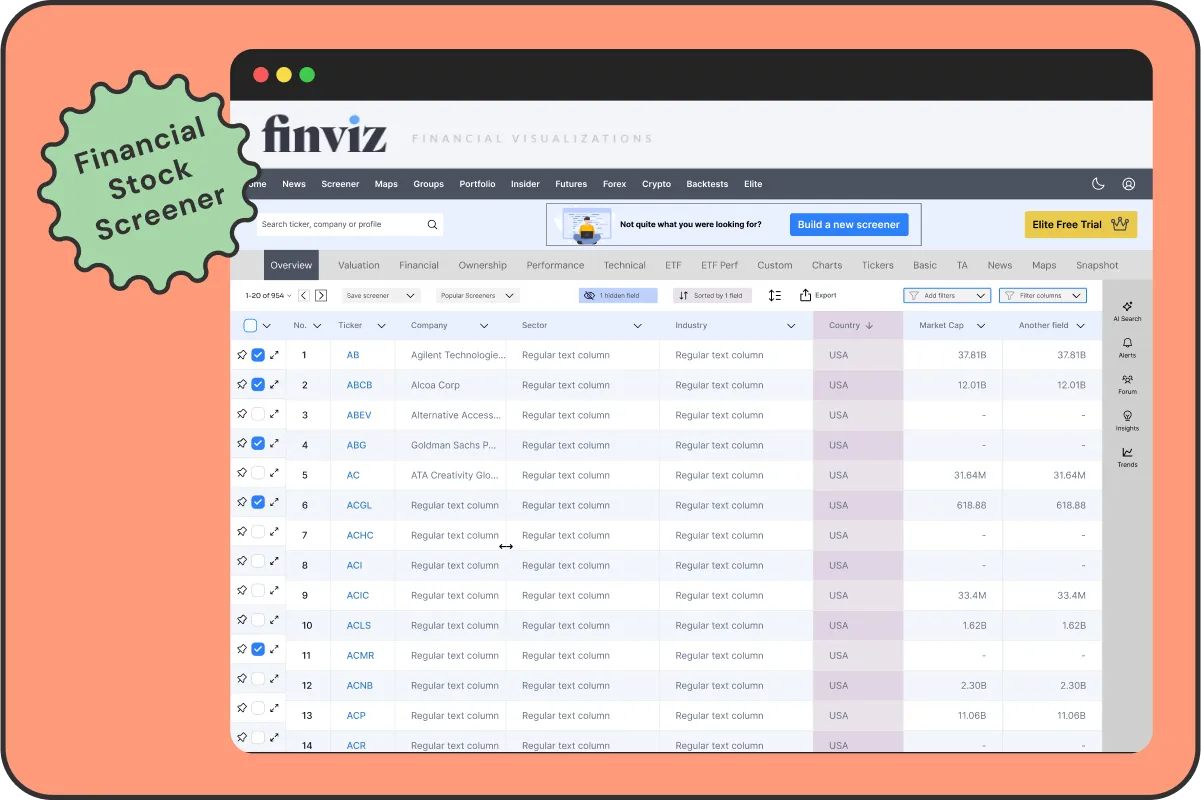
This project focused on redesigning the early experience of Finviz, one of the most widely used stock screeners for investors and traders.


Finviz offers real-time data across stocks, crypto, and ETFs, but its interface is dense, complex, and difficult to learn. The goal of the redesign was to create a clearer, more supportive experience that helps users make confident decisions faster, while also encouraging upgrades to the Elite tier.


From a business perspective, the challenge was to reduce the average upgrade time from Free to Elite — from 42 days to 21 — without being disruptive or salesy. Instead, the redesign focuses on surfacing value earlier, supporting exploration, and reducing cognitive overload.

THE PROBLEM

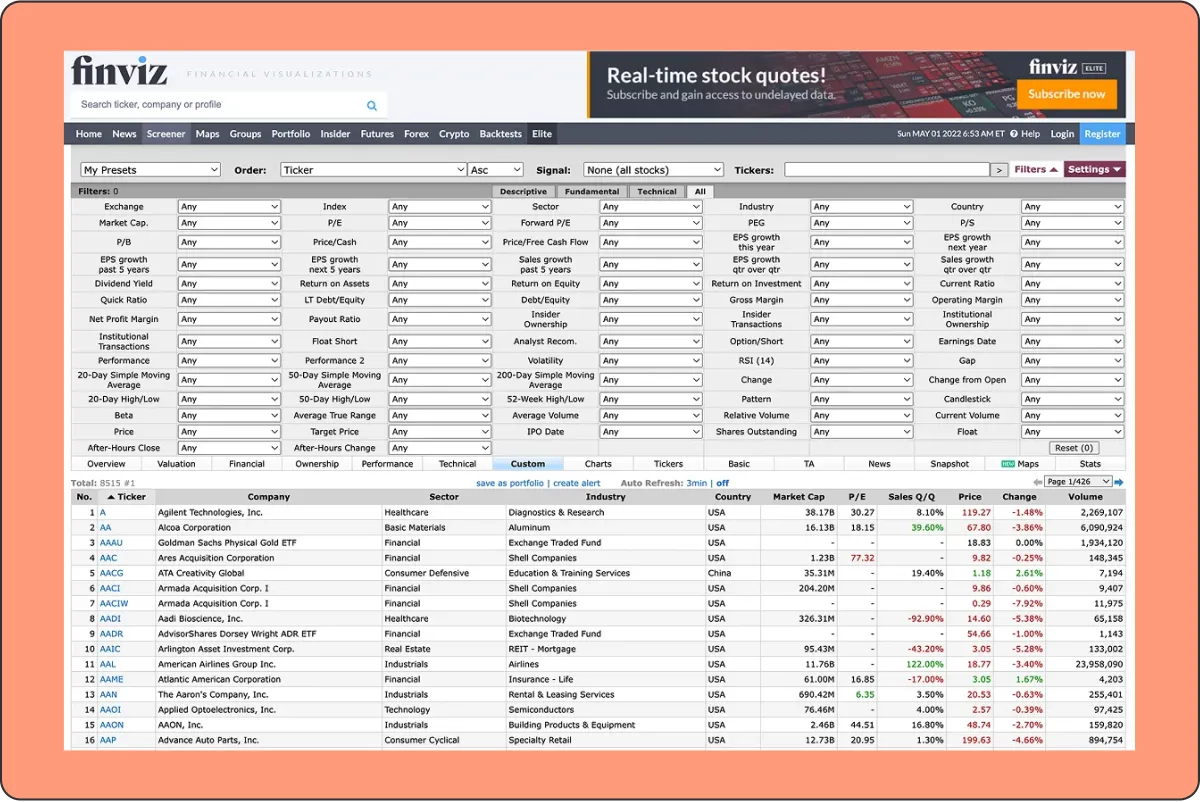
Finviz is undeniably powerful, but its interface makes it difficult for new users to access that power with confidence. The filters are scattered and unintuitive, leaving many unsure of where to begin. The data tables feel dense and overwhelming, with limited flexibility for users to tailor them to their needs. Key features like comparisons, alerts, and insights are buried in the interface and often go unnoticed. Without guidance, users frequently turn to external resources just to understand the basics. Visual clarity is lacking, onboarding is nearly nonexistent, and the upgrade path to Elite is poorly communicated. The result is a first-time experience that feels frustrating and unsupported — and a product that fails to convert when it could be delivering clear value.

02. CURRENT UI
case study image

03. GOALS

USER GOALS

Users needed to feel more confident navigating the platform from the start. They wanted to understand and apply filters without second-guessing, interpret data without friction, and learn through direct interaction rather than relying on outside tutorials. Most importantly, they needed to see progress quickly and feel in control of the interface from their very first session.

BUSINESS GOALS

The business aimed to reduce the time it takes for users to upgrade to Elite by making the value of the platform more immediately clear. Improving retention was just as important — users needed to feel confident and supported early on. The redesign also focused on increasing the perceived value of Elite features, making them discoverable and appealing without being disruptive. Ultimately, the goal was to minimise drop-off caused by confusion, complexity, or overwhelm.

04. DESIGN KPIs

To measure the impact of the redesign, the focus was on a set of experience-driven metrics. These included the time it takes for users to make their first successful interaction, how quickly they return to the platform, and how long it takes to upgrade to Elite. Other key indicators included overall satisfaction, engagement with premium features, and a reduction in drop-off during the first session. Every decision, from onboarding to filters to data clarity, was made with these outcomes in mind.

05. THE SOLUTION

SMARTER FIRST EXPERIENCE

To help users feel confident sooner and to surface the value of the platform earlier, the redesign focused on three key areas: onboarding, filters, and the screener interface itself. These improvements work together to reduce overwhelm, highlight relevance, and support better decision-making from the start.

05. THE SOLUTION - PART 1

INTERACTIVE ONBOARDING WIZARD

Instead of dropping users straight into a dense, unfamiliar screener, the experience now begins with a lightweight onboarding flow. The wizard guides users through a series of simple steps: selecting an investment goal, applying curated filters, and previewing a screener tailored to their preferences. This creates a clear first success moment — users immediately see relevant data aligned with their intent. Along the way, Elite-exclusive features are highlighted subtly, reinforcing their value without pushing an upgrade too soon.

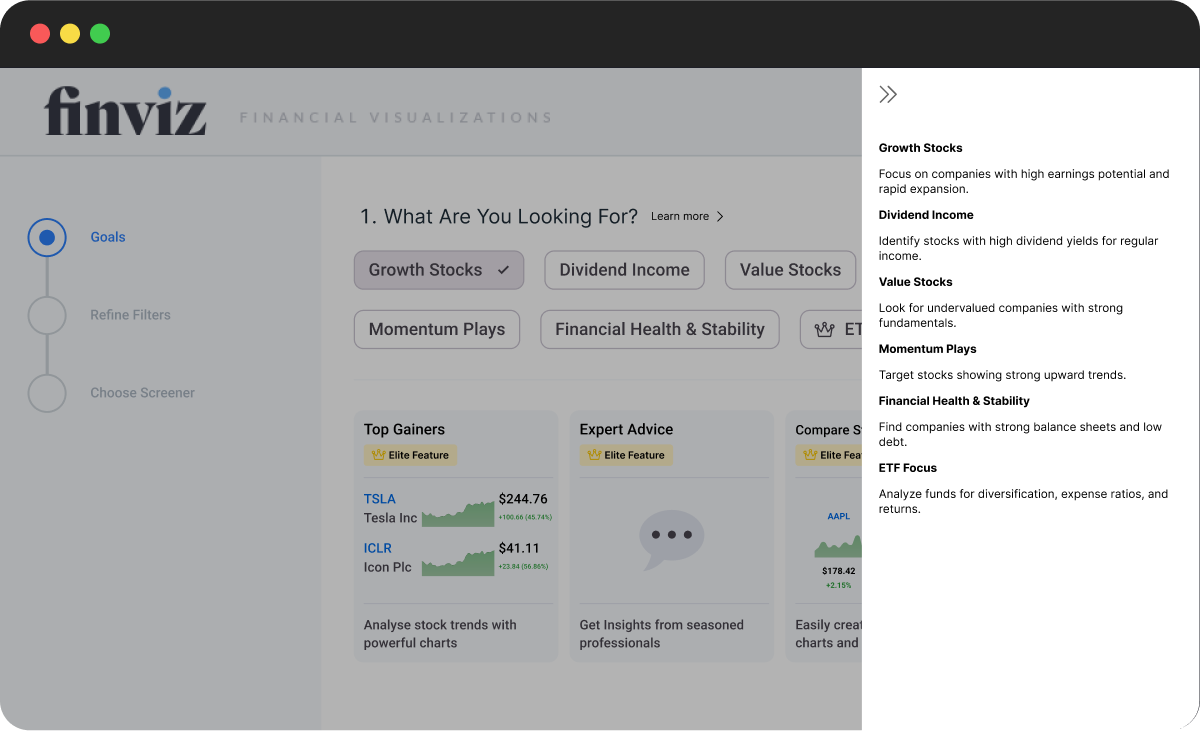
Onboarding: Goals & Contextual Sidebar
case study image
case study image

PROGRESS TRACKER

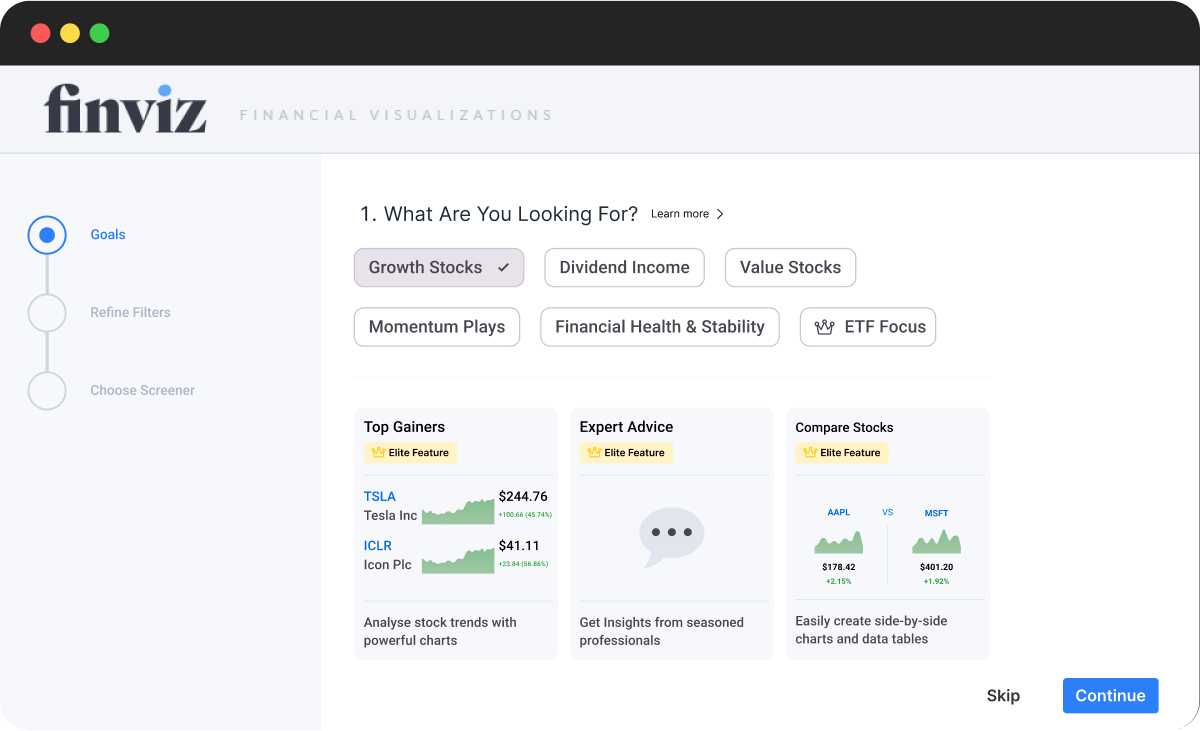
A simple progress tracker on the left helps orient users during onboarding without overwhelming them. Each step is clearly labeled and visually distinct, giving users a sense of where they are and what comes next — reducing friction and increasing task completion.

SIDEBAR

Clicking “Learn more” opens a contextual sidebar with clear explanations, avoiding the friction of hover-based tooltips.

ELITE FEATURE ICON

Elite Feature Icon shown next to the ETF Focus option

SNEAK PEEK CARDS

Elite Feature Sneak Peek Cards. The key idea here is to tease the value of Finviz early, even during onboarding, so users get a glimpse of the powerful data they’ll unlock, before they’ve done anything.

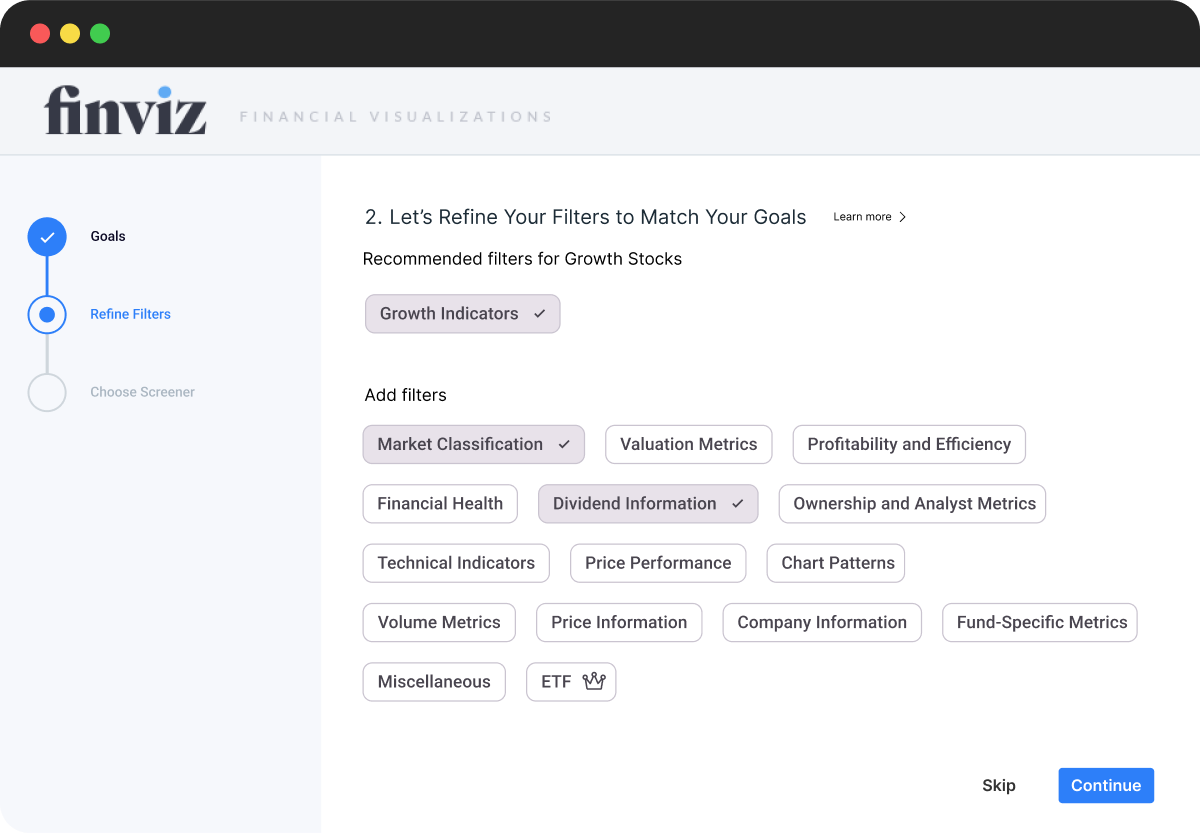
Onboarding: Refine Filters

case study image

GROUPED FILTERS

Filters are grouped into meaningful categories, helping users understand how their selections relate to different investment goals. This makes it easier to scan, select, and build a screener with confidence.

DYNAMIC RECOMMENDATIONS

When users select more than one goal in Step 1, filters are dynamically combined and separated by group. This provides tailored suggestions without overwhelming the interface, even when strategies overlap.

IN-LINE DESELECTION

Clicking a selected filter moves it to the “Add more filters” section, making it easy to adjust preferences without losing visibility. This keeps the interaction light and forgiving.

LEARN BY DOING

Users don’t need to understand every metric upfront. Each filter can be selected, explored, and adjusted in real time — with helpful explanations available through the sidebar. This creates a low-risk, self-guided space to experiment, encouraging learning through interaction rather than instruction.

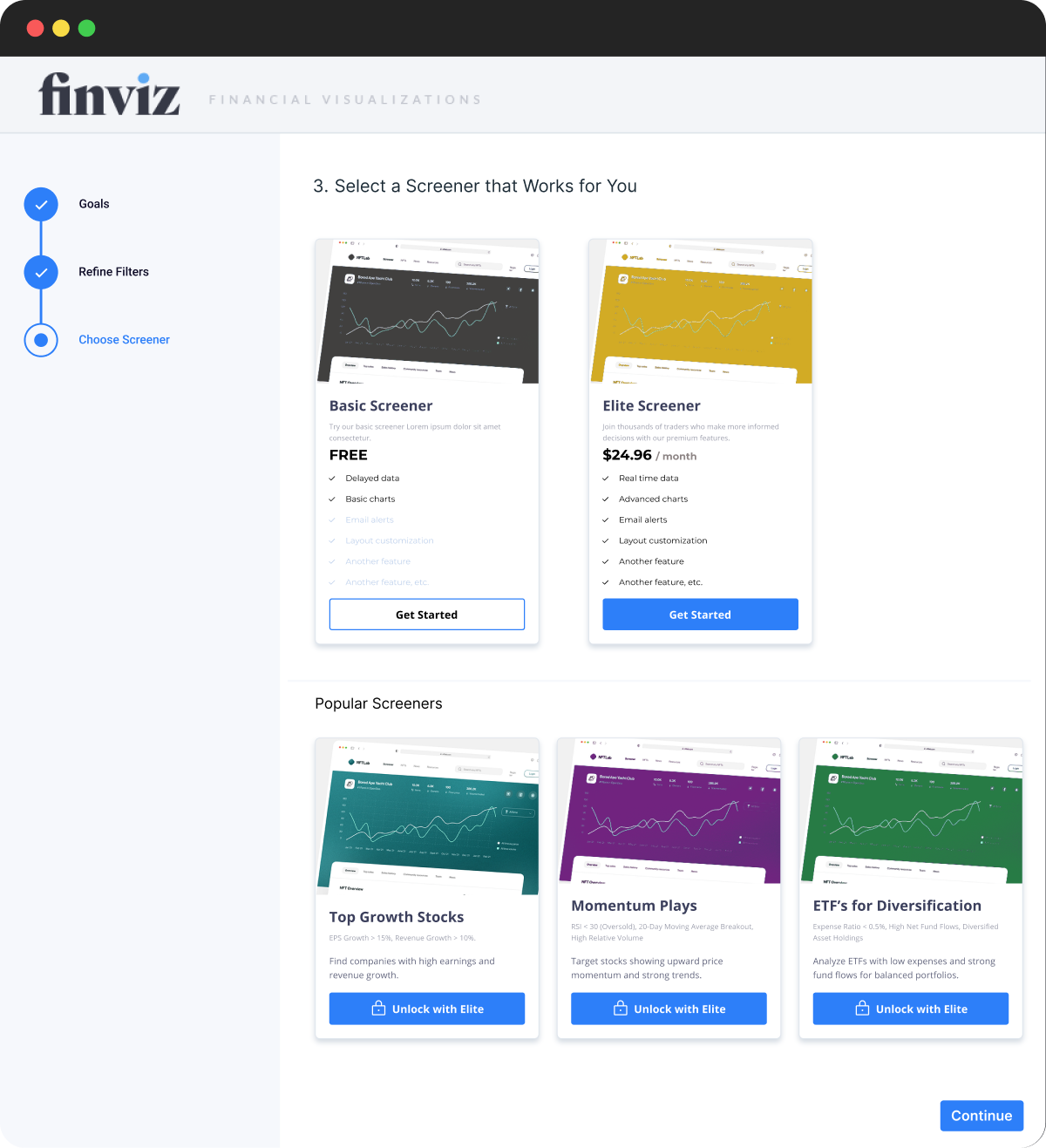
Onboarding: Select a Screener

case study image
case study image

SCREENER OPTIONS

Presenting both the Basic and Elite screeners at the end of onboarding gives users a clear, low-pressure choice. Instead of hiding Elite behind a paywall, it’s surfaced alongside the Free option, emphasizing transparency and encouraging upgrades through informed value comparison.

POPULAR SCREENERS

Pre-built Elite screeners (like “Top Growth Stocks”) help users immediately see what’s possible. This also reinforces the idea of “learning by doing” — users can dive in and explore high-quality filters without needing to build from scratch.

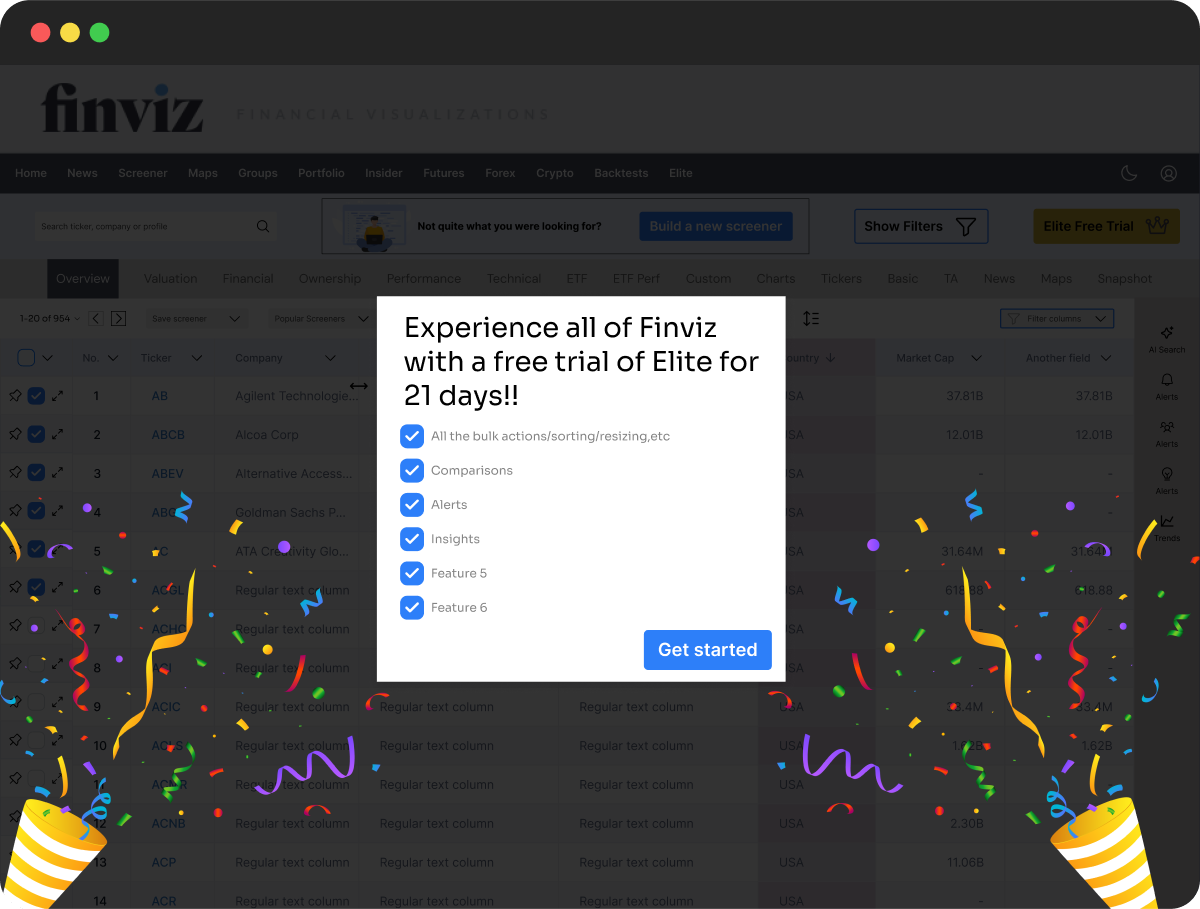
FREE TRIAL MOMENT

Selecting the Basic Screener activates a celebratory trial moment. This creates positive momentum and subtly rewards users for exploring, while encouraging them to try Elite features in a playful, low-risk way.

06. THE SOLUTION - PART 2

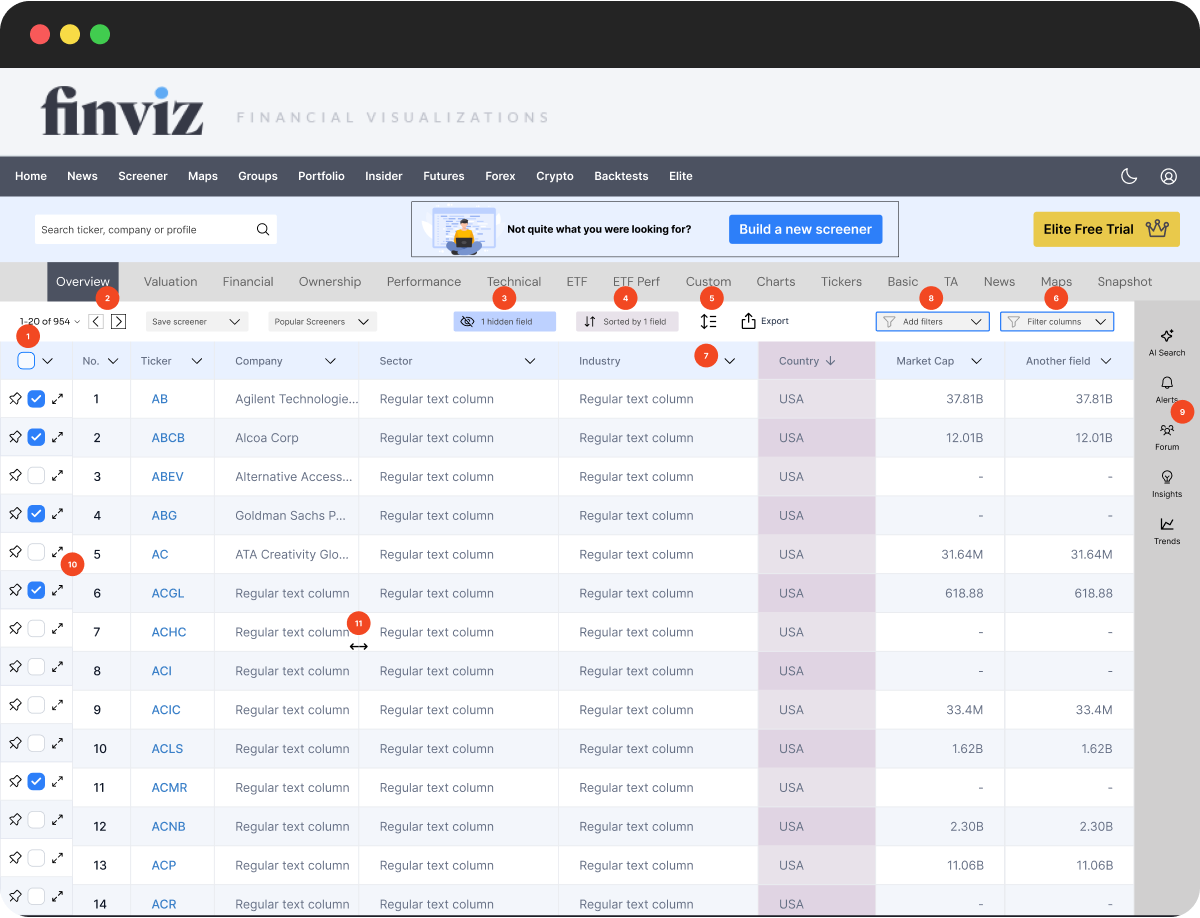
Key Interactions with the Screener Interface

case study image

1

BULK ROW ACTIONS

Quick tools to compare, alert, export, and manage selected rows.

Pin to top

Create alert

Sync to portfolio

Compare (side by side charts/tables)

Export

Share

Hide row

Delete row

2

PAGINATION

Easily browse large datasets with simple navigation controls.

Rows:

20

50

100

3

HIDDEN FIELDS

Access key tools like alerts, forum, insights, and trend analysis — all in one handy panel.

Find a field

case study image

No.

Ticker

Company

Sector

Industry

Country

Market Cap

Hide all

Show all

4

SORT

Sort by one or more columns to organize key data.

Sort by

Country

A to Z

Add another sort

5

TABLE DENSITY

Adjust row spacing to suit your screen or preference.

Select a row height

case study image

Compact

case study image

Standard

case study image

Comfortable

6

FILTER COLUMNS

Apply advanced filters using clear logic controls.

In this view, show records

Where

Country

contains

Enter a value

and

Market Cap

>

Enter a value

Add condition

7

COLUMN DROPDOWN

Sort, reorder, or remove fields directly from any column.

Search

Move right

Move left

Sort A to Z

Sort Z to A

Hide field

Delete field

8

ADD FILTERS

Suggested filters based on your screener goal for faster setup.

Add Filters

Growth Indicators

Market Classification

Valuation Metrics

Profitability and Efficiency

Financial Health

Dividend Information

Technical Indicators

Price Performance

Chart Patterns

9

ALERTS & MORE

Access key tools like alerts, forum, insights, and trend analysis — all in one handy panel.

AI Search

Alerts

Forum

Insights

Trends

10

EXPAND DETAILS

Quickly view in-depth stock charts and stats. no need to switch context.

case study image

11

RESIZABLE COLUMNS

Adjust column widths to focus on what matters most — streamline the view without losing context.

07. RELECTIONS

This project was part of the Smart Interface Design Patterns course and challenged me to rethink how onboarding, guidance, and conversion work together in complex, data-heavy environments. It showed me how even a product that feels overwhelming at first can become intuitive and rewarding, if you meet users where they are.


If I had more time, I’d explore adding alert icons directly to each row in the screener table, giving users quick access to a high-value feature without hunting for it. I’d also consider pre-loading a few relevant filters based on the user's chosen goal, to give the table more immediate context and reduce the sense of starting from scratch. I would also refine the UI further, improving font sizes, spacing, and alignment for better visual hierarchy and accessibility.

Finviz: Redesigning the Financial Stock Screener

Helping users reach success faster by simplifying filters, improving data clarity, and guiding upgrades with confidence

case study image

01. OVERVIEW

PROJECT OVERVIEW

This project focused on redesigning the early experience of Finviz, one of the most widely used stock screeners for investors and traders.


Finviz offers real-time data across stocks, crypto, and ETFs, but its interface is dense, complex, and difficult to learn. The goal of the redesign was to create a clearer, more supportive experience that helps users make confident decisions faster, while also encouraging upgrades to the Elite tier.


From a business perspective, the challenge was to reduce the average upgrade time from Free to Elite — from 42 days to 21 — without being disruptive or salesy. Instead, the redesign focuses on surfacing value earlier, supporting exploration, and reducing cognitive overload.

THE PROBLEM

Finviz is undeniably powerful, but its interface makes it difficult for new users to access that power with confidence. The filters are scattered and unintuitive, leaving many unsure of where to begin. The data tables feel dense and overwhelming, with limited flexibility for users to tailor them to their needs. Key features like comparisons, alerts, and insights are buried in the interface and often go unnoticed. Without guidance, users frequently turn to external resources just to understand the basics. Visual clarity is lacking, onboarding is nearly nonexistent, and the upgrade path to Elite is poorly communicated. The result is a first-time experience that feels frustrating and unsupported — and a product that fails to convert when it could be delivering clear value.

02. CURRENT UI

case study image

03. GOALS

USER GOALS

Users needed to feel more confident navigating the platform from the start. They wanted to understand and apply filters without second-guessing, interpret data without friction, and learn through direct interaction rather than relying on outside tutorials. Most importantly, they needed to see progress quickly and feel in control of the interface from their very first session.

BUSINESS GOALS

The business aimed to reduce the time it takes for users to upgrade to Elite by making the value of the platform more immediately clear. Improving retention was just as important — users needed to feel confident and supported early on. The redesign also focused on increasing the perceived value of Elite features, making them discoverable and appealing without being disruptive. Ultimately, the goal was to minimise drop-off caused by confusion, complexity, or overwhelm.

04. DESIGN KPIs

To measure the impact of the redesign, the focus was on a set of experience-driven metrics. These included the time it takes for users to make their first successful interaction, how quickly they return to the platform, and how long it takes to upgrade to Elite. Other key indicators included overall satisfaction, engagement with premium features, and a reduction in drop-off during the first session. Every decision, from onboarding to filters to data clarity, was made with these outcomes in mind.

05. THE SOLUTION

SMARTER FIRST EXPERIENCE

To help users feel confident sooner and to surface the value of the platform earlier, the redesign focused on three key areas: onboarding, filters, and the screener interface itself. These improvements work together to reduce overwhelm, highlight relevance, and support better decision-making from the start.

05. THE SOLUTION - PART 1

INTERACTIVE ONBOARDING WIZARD

Instead of dropping users straight into a dense, unfamiliar screener, the experience now begins with a lightweight onboarding flow. The wizard guides users through a series of simple steps: selecting an investment goal, applying curated filters, and previewing a screener tailored to their preferences. This creates a clear first success moment — users immediately see relevant data aligned with their intent. Along the way, Elite-exclusive features are highlighted subtly, reinforcing their value without pushing an upgrade too soon.

Onboarding: Goals & Contextual Sidebar
case study image
case study image

PROGRESS TRACKER

A simple progress tracker on the left helps orient users during onboarding without overwhelming them. Each step is clearly labeled and visually distinct, giving users a sense of where they are and what comes next — reducing friction and increasing task completion.

SIDEBAR

Clicking “Learn more” opens a contextual sidebar with clear explanations, avoiding the friction of hover-based tooltips.

ELITE FEATURE ICON

Elite Feature Icon shown next to the ETF Focus option

SNEAK PEEK CARDS

Elite Feature Sneak Peek Cards. The key idea here is to tease the value of Finviz early, even during onboarding, so users get a glimpse of the powerful data they’ll unlock, before they’ve done anything.

Onboarding: Refine Filters
case study image

GROUPED FILTERS

Filters are grouped into meaningful categories, helping users understand how their selections relate to different investment goals. This makes it easier to scan, select, and build a screener with confidence.

DYNAMIC RECOMMENDATIONS

When users select more than one goal in Step 1, filters are dynamically combined and separated by group. This provides tailored suggestions without overwhelming the interface, even when strategies overlap.

IN-LINE DESELECTION

Clicking a selected filter moves it to the “Add more filters” section, making it easy to adjust preferences without losing visibility. This keeps the interaction light and forgiving.

LEARN BY DOING

Users don’t need to understand every metric upfront. Each filter can be selected, explored, and adjusted in real time — with helpful explanations available through the sidebar. This creates a low-risk, self-guided space to experiment, encouraging learning through interaction rather than instruction.

Onboarding: Select a Screener
case study image
case study image

SCREENER OPTIONS

Presenting both the Basic and Elite screeners at the end of onboarding gives users a clear, low-pressure choice. Instead of hiding Elite behind a paywall, it’s surfaced alongside the Free option, emphasizing transparency and encouraging upgrades through informed value comparison.

POPULAR SCREENERS

Pre-built Elite screeners (like “Top Growth Stocks”) help users immediately see what’s possible. This also reinforces the idea of “learning by doing” — users can dive in and explore high-quality filters without needing to build from scratch.

FREE TRIAL MOMENT

Selecting the Basic Screener activates a celebratory trial moment. This creates positive momentum and subtly rewards users for exploring, while encouraging them to try Elite features in a playful, low-risk way.

06. THE SOLUTION - PART 2

Key Interactions with the Screener Interface

case study image

1

BULK ROW ACTIONS

Quick tools to compare, alert, export, and manage selected rows.

Pin to top

Create alert

Sync to portfolio

Compare (side by side charts/tables)

Export

Share

Hide row

Delete row

2

PAGINATION

Easily browse large datasets with simple navigation controls.

Rows:

20

50

100

3

HIDDEN FIELDS

Access key tools like alerts, forum, insights, and trend analysis — all in one handy panel.

Find a field

case study image

No.

Ticker

Company

Sector

Industry

Country

Market Cap

Hide all

Show all

4

SORT

Sort by one or more columns to organize key data.

Sort by

Country

A to Z

Add another sort

5

TABLE DENSITY

Adjust row spacing to suit your screen or preference.

Select a row height

case study image

Compact

case study image

Standard

case study image

Comfortable

6

FILTER COLUMNS

Apply advanced filters using clear logic controls.

In this view, show records

Where

Country

contains

Enter a value

and

Market Cap

>

Enter a value

Add condition

7

COLUMN DROPDOWN

Sort, reorder, or remove fields directly from any column.

Search

Move right

Move left

Sort A to Z

Sort Z to A

Hide field

Delete field

8

ADD FILTERS

Suggested filters based on your screener goal for faster setup.

Add Filters

Growth Indicators

Market Classification

Valuation Metrics

Profitability and Efficiency

Financial Health

Dividend Information

Technical Indicators

Price Performance

Chart Patterns

9

ALERTS & MORE

Access key tools like alerts, forum, insights, and trend analysis — all in one handy panel.

AI Search

Alerts

Forum

Insights

Trends

10

EXPAND DETAILS

Quickly view in-depth stock charts and stats. no need to switch context.

case study image

11

RESIZABLE COLUMNS

Adjust column widths to focus on what matters most — streamline the view without losing context.

07. RELECTIONS

This project was part of the Smart Interface Design Patterns course and challenged me to rethink how onboarding, guidance, and conversion work together in complex, data-heavy environments. It showed me how even a product that feels overwhelming at first can become intuitive and rewarding, if you meet users where they are.


If I had more time, I’d explore adding alert icons directly to each row in the screener table, giving users quick access to a high-value feature without hunting for it. I’d also consider pre-loading a few relevant filters based on the user's chosen goal, to give the table more immediate context and reduce the sense of starting from scratch. I would also refine the UI further, improving font sizes, spacing, and alignment for better visual hierarchy and accessibility.

Finviz: Redesigning the Financial Stock Screener

Helping users reach success faster by simplifying filters, improving data clarity, and guiding upgrades with confidence

case study image

01. OVERVIEW

PROJECT OVERVIEW

This project focused on redesigning the early experience of Finviz, one of the most widely used stock screeners for investors and traders.


Finviz offers real-time data across stocks, crypto, and ETFs, but its interface is dense, complex, and difficult to learn. The goal of the redesign was to create a clearer, more supportive experience that helps users make confident decisions faster, while also encouraging upgrades to the Elite tier.


From a business perspective, the challenge was to reduce the average upgrade time from Free to Elite — from 42 days to 21 — without being disruptive or salesy. Instead, the redesign focuses on surfacing value earlier, supporting exploration, and reducing cognitive overload.

THE PROBLEM

Finviz is undeniably powerful, but its interface makes it difficult for new users to access that power with confidence. The filters are scattered and unintuitive, leaving many unsure of where to begin. The data tables feel dense and overwhelming, with limited flexibility for users to tailor them to their needs. Key features like comparisons, alerts, and insights are buried in the interface and often go unnoticed. Without guidance, users frequently turn to external resources just to understand the basics. Visual clarity is lacking, onboarding is nearly nonexistent, and the upgrade path to Elite is poorly communicated. The result is a first-time experience that feels frustrating and unsupported — and a product that fails to convert when it could be delivering clear value.

02. CURRENT UI

case study image

03. GOALS

USER GOALS

Users needed to feel more confident navigating the platform from the start. They wanted to understand and apply filters without second-guessing, interpret data without friction, and learn through direct interaction rather than relying on outside tutorials. Most importantly, they needed to see progress quickly and feel in control of the interface from their very first session.

BUSINESS GOALS

The business aimed to reduce the time it takes for users to upgrade to Elite by making the value of the platform more immediately clear. Improving retention was just as important — users needed to feel confident and supported early on. The redesign also focused on increasing the perceived value of Elite features, making them discoverable and appealing without being disruptive. Ultimately, the goal was to minimise drop-off caused by confusion, complexity, or overwhelm.

04. DESIGN KPIs

To measure the impact of the redesign, the focus was on a set of experience-driven metrics. These included the time it takes for users to make their first successful interaction, how quickly they return to the platform, and how long it takes to upgrade to Elite. Other key indicators included overall satisfaction, engagement with premium features, and a reduction in drop-off during the first session. Every decision, from onboarding to filters to data clarity, was made with these outcomes in mind.

05. THE SOLUTION

SMARTER FIRST EXPERIENCE

To help users feel confident sooner and to surface the value of the platform earlier, the redesign focused on three key areas: onboarding, filters, and the screener interface itself. These improvements work together to reduce overwhelm, highlight relevance, and support better decision-making from the start.

05. THE SOLUTION - PART 1

INTERACTIVE ONBOARDING WIZARD

Instead of dropping users straight into a dense, unfamiliar screener, the experience now begins with a lightweight onboarding flow. The wizard guides users through a series of simple steps: selecting an investment goal, applying curated filters, and previewing a screener tailored to their preferences. This creates a clear first success moment — users immediately see relevant data aligned with their intent. Along the way, Elite-exclusive features are highlighted subtly, reinforcing their value without pushing an upgrade too soon.

Onboarding: Goals & Contextual Sidebar

case study image
case study image

PROGRESS TRACKER

A simple progress tracker on the left helps orient users during onboarding without overwhelming them. Each step is clearly labeled and visually distinct, giving users a sense of where they are and what comes next — reducing friction and increasing task completion.

SIDEBAR

Clicking “Learn more” opens a contextual sidebar with clear explanations, avoiding the friction of hover-based tooltips.

ELITE FEATURE ICON

Elite Feature Icon shown next to the ETF Focus option

SNEAK PEEK CARDS

Elite Feature Sneak Peek Cards. The key idea here is to tease the value of Finviz early, even during onboarding, so users get a glimpse of the powerful data they’ll unlock, before they’ve done anything.

Onboarding: Refine Filters

case study image

GROUPED FILTERS

Filters are grouped into meaningful categories, helping users understand how their selections relate to different investment goals. This makes it easier to scan, select, and build a screener with confidence.

DYNAMIC RECOMMENDATIONS

When users select more than one goal in Step 1, filters are dynamically combined and separated by group. This provides tailored suggestions without overwhelming the interface, even when strategies overlap.

IN-LINE DESELECTION

Clicking a selected filter moves it to the “Add more filters” section, making it easy to adjust preferences without losing visibility. This keeps the interaction light and forgiving.

LEARN BY DOING

Users don’t need to understand every metric upfront. Each filter can be selected, explored, and adjusted in real time — with helpful explanations available through the sidebar. This creates a low-risk, self-guided space to experiment, encouraging learning through interaction rather than instruction.

Onboarding: Select a Screener
case study image
case study image

SCREENER OPTIONS

Presenting both the Basic and Elite screeners at the end of onboarding gives users a clear, low-pressure choice. Instead of hiding Elite behind a paywall, it’s surfaced alongside the Free option, emphasizing transparency and encouraging upgrades through informed value comparison.

POPULAR SCREENERS

Pre-built Elite screeners (like “Top Growth Stocks”) help users immediately see what’s possible. This also reinforces the idea of “learning by doing” — users can dive in and explore high-quality filters without needing to build from scratch.

FREE TRIAL MOMENT

Selecting the Basic Screener activates a celebratory trial moment. This creates positive momentum and subtly rewards users for exploring, while encouraging them to try Elite features in a playful, low-risk way.

06. THE SOLUTION - PART 2

Key Interactions with the Screener Interface
case study image

1

BULK ROW ACTIONS

Quick tools to compare, alert, export, and manage selected rows.

Pin to top

Create alert

Sync to portfolio

Compare (side by side charts/tables)

Export

Share

Hide row

Delete row

Easily browse large datasets with simple navigation controls.

2

PAGINATION

Rows:

20

50

100

3

HIDDEN FIELDS

Access key tools like alerts, forum, insights, and trend analysis — all in one handy panel.

Find a field

case study image

No.

Ticker

Company

Sector

Industry

Country

Market Cap

Hide all

Show all

4

SORT

Sort by one or more columns to organize key data.

Sort by

Country

A to Z

Add another sort

5

TABLE DENSITY

Adjust row spacing to suit your screen or preference.

Select a row height

case study image

Compact

case study image

Standard

case study image

Comfortable

6

FILTER COLUMNS

Apply advanced filters using clear logic controls.

In this view, show records

Where

Country

contains

Enter a value

and

Market Cap

>

Enter a value

Add condition

7

COLUMN DROPDOWN

Sort, reorder, or remove fields directly from any column.

Search

Move right

Move left

Sort A to Z

Sort Z to A

Hide field

Delete field

8

ADD FILTERS

Suggested filters based on your screener goal for faster setup.

Add Filters

Growth Indicators

Market Classification

Valuation Metrics

Profitability and Efficiency

Financial Health

Dividend Information

Technical Indicators

Price Performance

Chart Patterns

9

ALERTS & MORE

Access key tools like alerts, forum, insights, and trend analysis — all in one handy panel.

AI Search

Alerts

Forum

Insights

Trends

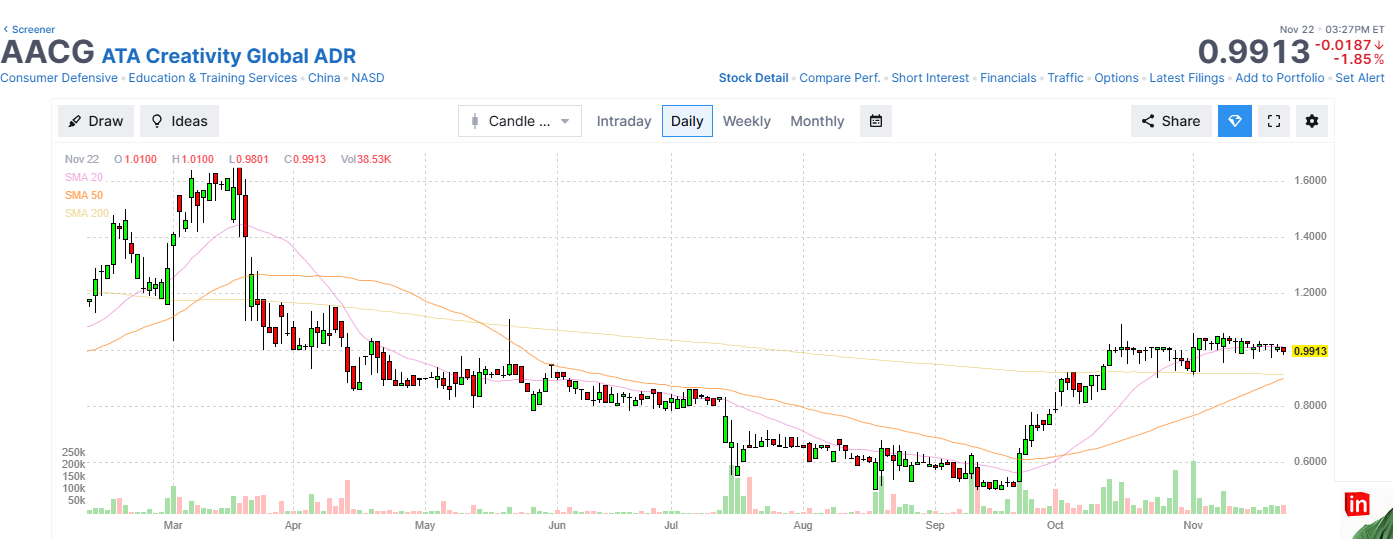
10

EXPAND DETAILS

Quickly view in-depth stock charts and stats. no need to switch context.
case study image

11

RESIZABLE COLUMNS

Adjust column widths to focus on what matters most — streamline the view without losing context.

07. RELECTIONS

This project was part of the Smart Interface Design Patterns course and challenged me to rethink how onboarding, guidance, and conversion work together in complex, data-heavy environments. It showed me how even a product that feels overwhelming at first can become intuitive and rewarding, if you meet users where they are.


If I had more time, I’d explore adding alert icons directly to each row in the screener table, giving users quick access to a high-value feature without hunting for it. I’d also consider pre-loading a few relevant filters based on the user's chosen goal, to give the table more immediate context and reduce the sense of starting from scratch. I would also refine the UI further, improving font sizes, spacing, and alignment for better visual hierarchy and accessibility.